Choose the reference files
Choose one character image and a short driving clip. For replacement, look for a source clip with one clearly visible subject and a reference image with a similarly framed body.
Use Wan 2.2 Animate to move a character image with a driving video or replace a performer in the source scene. Try Move and Replace in the browser.
Start generatingChoose a motion reference and add a character photo. The reference video controls the movement.
How should the source video be used?
Keep the source scene and timing, and animate your character with the movement in the clip.
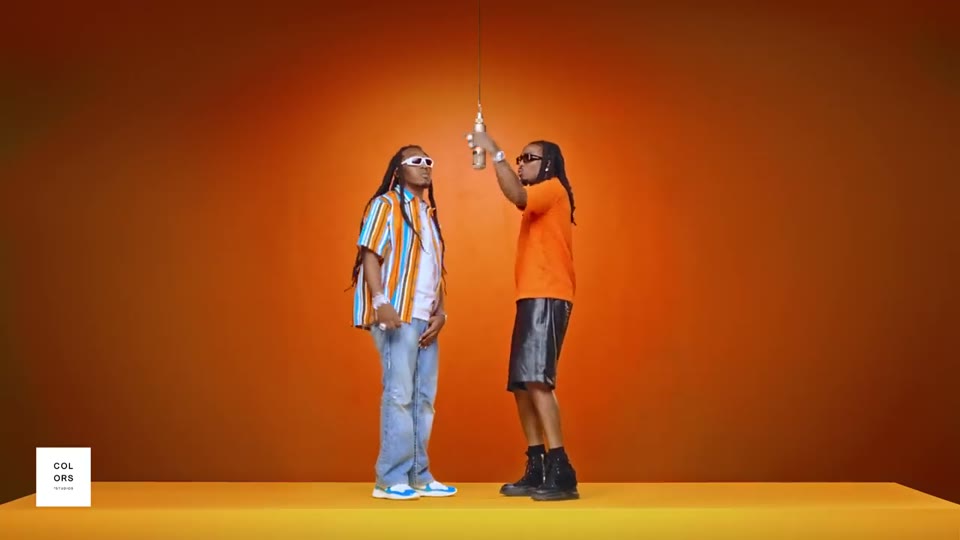
A full-body character performs the upbeat Hotel Lobby dance in a bright hotel lobby, with the same identity, clothing, and proportions as the reference image. The performance follows the reference video timing. No text, logos, or reference audio.
1 performer · 16:9 source · source audio off
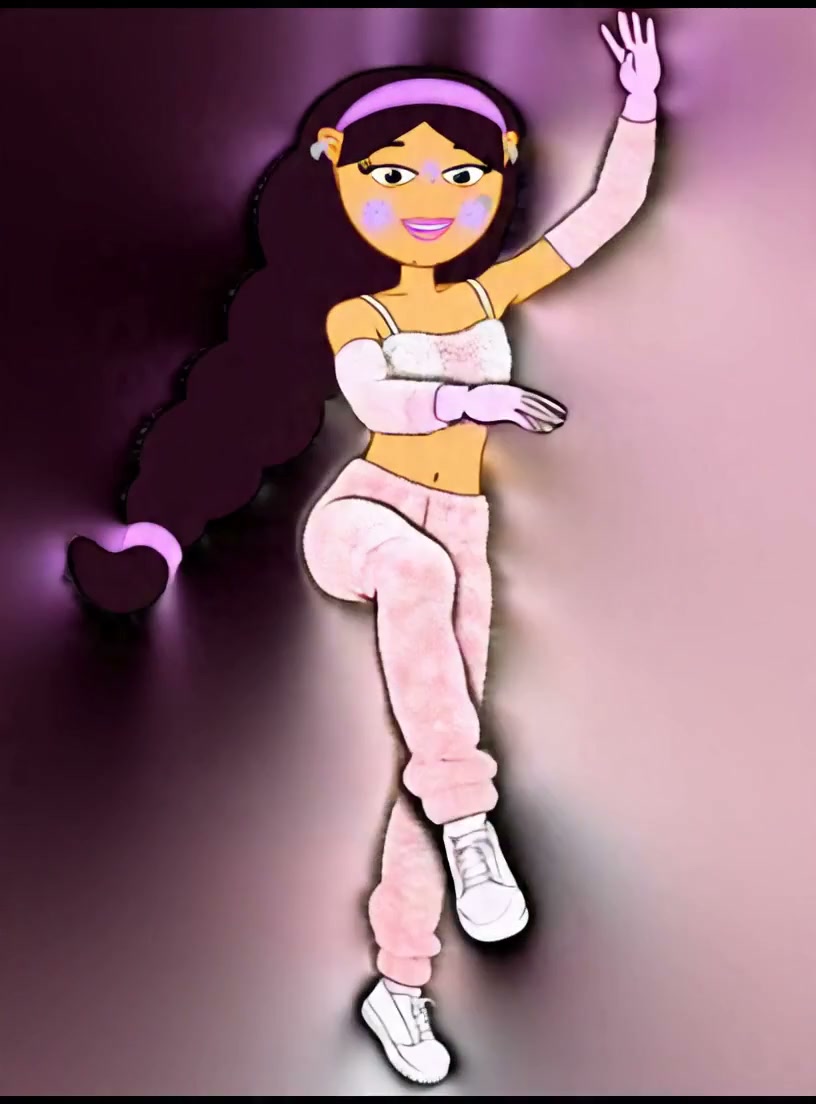
A character gives a natural friendly wave while preserving the reference identity, clothing, and proportions.
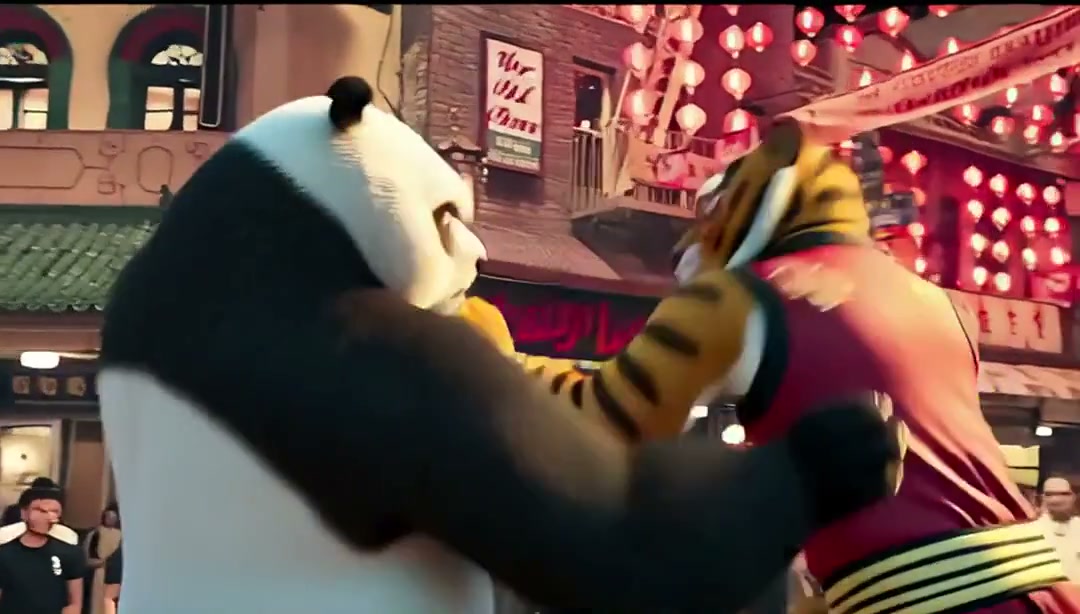
A character performs an energetic full-body martial arts victory pose in a game-like scene.
Choose one character image and a short driving clip. For replacement, look for a source clip with one clearly visible subject and a reference image with a similarly framed body.
Motion Transfer runs the Move workflow. Character Replacement runs Replace and uses the driving clip as the source scene. The workspace accepts a driving clip up to ten seconds.
In Move, review the pose and overall silhouette. In Replace, review the edges around clothing and hair when objects pass in front of the original performer. A steadier scene gives you a better baseline for troubleshooting.