How to Choose a Driving Video for AI Animation
Choose and trim a driving video that makes character motion easier to track. See how framing, occlusion and clip length affect AI animation.
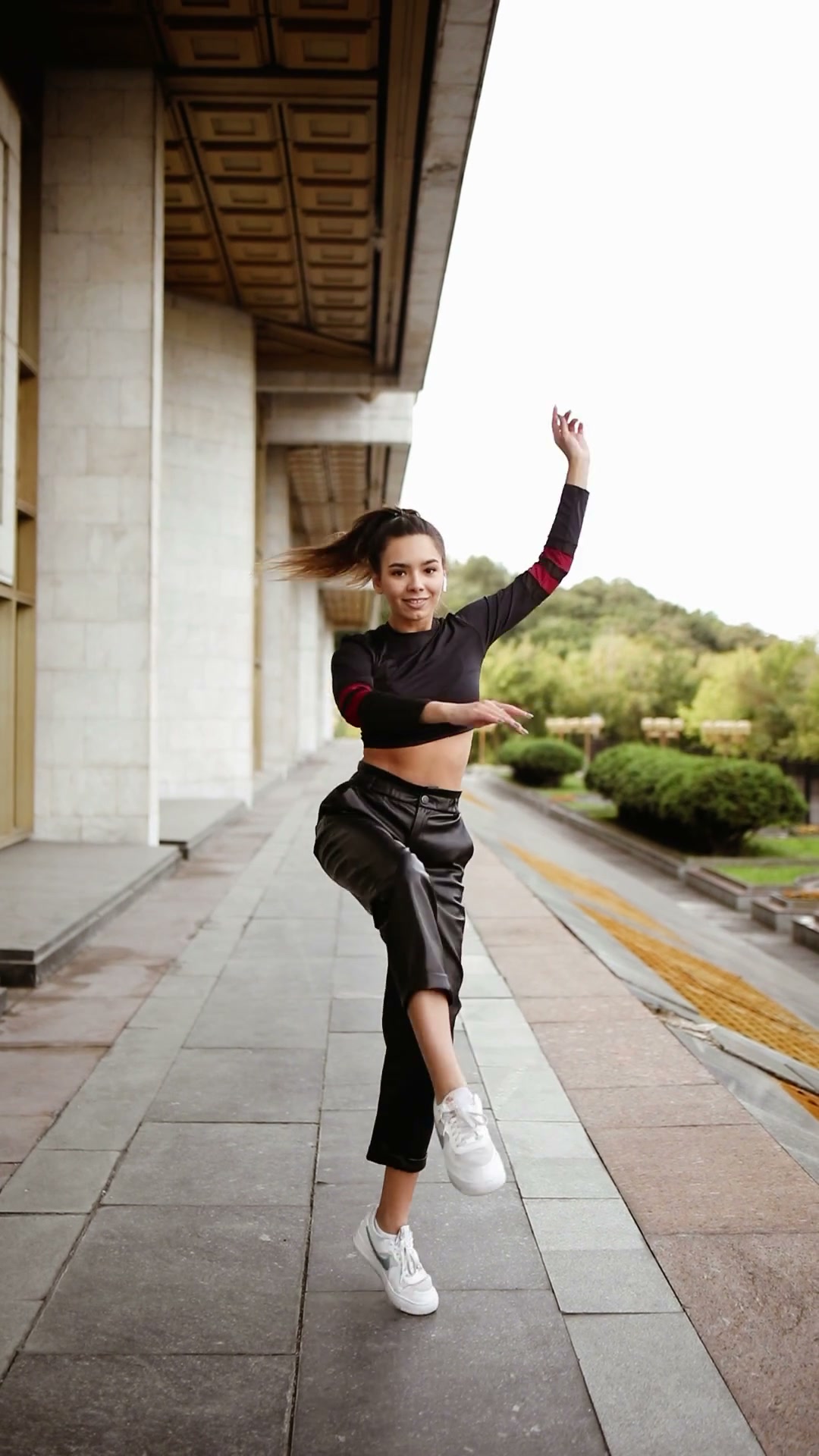
A driving video supplies the movement and timing for a character animation. The reference image supplies the character’s appearance. Before you spend credits on a long clip, find a few seconds that show the movement clearly and make it easy to judge the result.
Start where the movement begins
Cut the clip just before the first useful action. If you want a two-step turn, begin when the performer is already in frame and finish after they come to a stop. Removing dead time also makes it easier to compare the original and generated motion side by side.
Match the framing to the reference image
Use a full-body driving video for a full-body character. Check that the feet stay in frame during the widest step and that the hands are visible at the ends of gestures. For a portrait, use a face close-up with even light and a steady camera. A face-driving clip is a better fit for LivePortrait than a wide dance shot.
Look for anything that hides the movement
Hands crossing the face, a second performer passing in front, and camera cuts can all make the action harder to track. Start with a clear take. Once it works, test a more challenging clip and compare the exact moment where the motion or silhouette changes.
Review the first test before increasing quality
Open AI Motion Transfer with the character image and a short excerpt. Watch the start, middle and end. Look for a changed outfit or a foot that slides during a step. If the reference scene needs to stay in the output, use Character Replacement with the original clip as the scene source.